







Do you actually need a smart lock in Malaysia? Doors and gates
Smart lock Malaysia buying guide covering the Aqara D200i, U400 and U200 Lite, plus door thickness, battery failure and what your condo management allows.
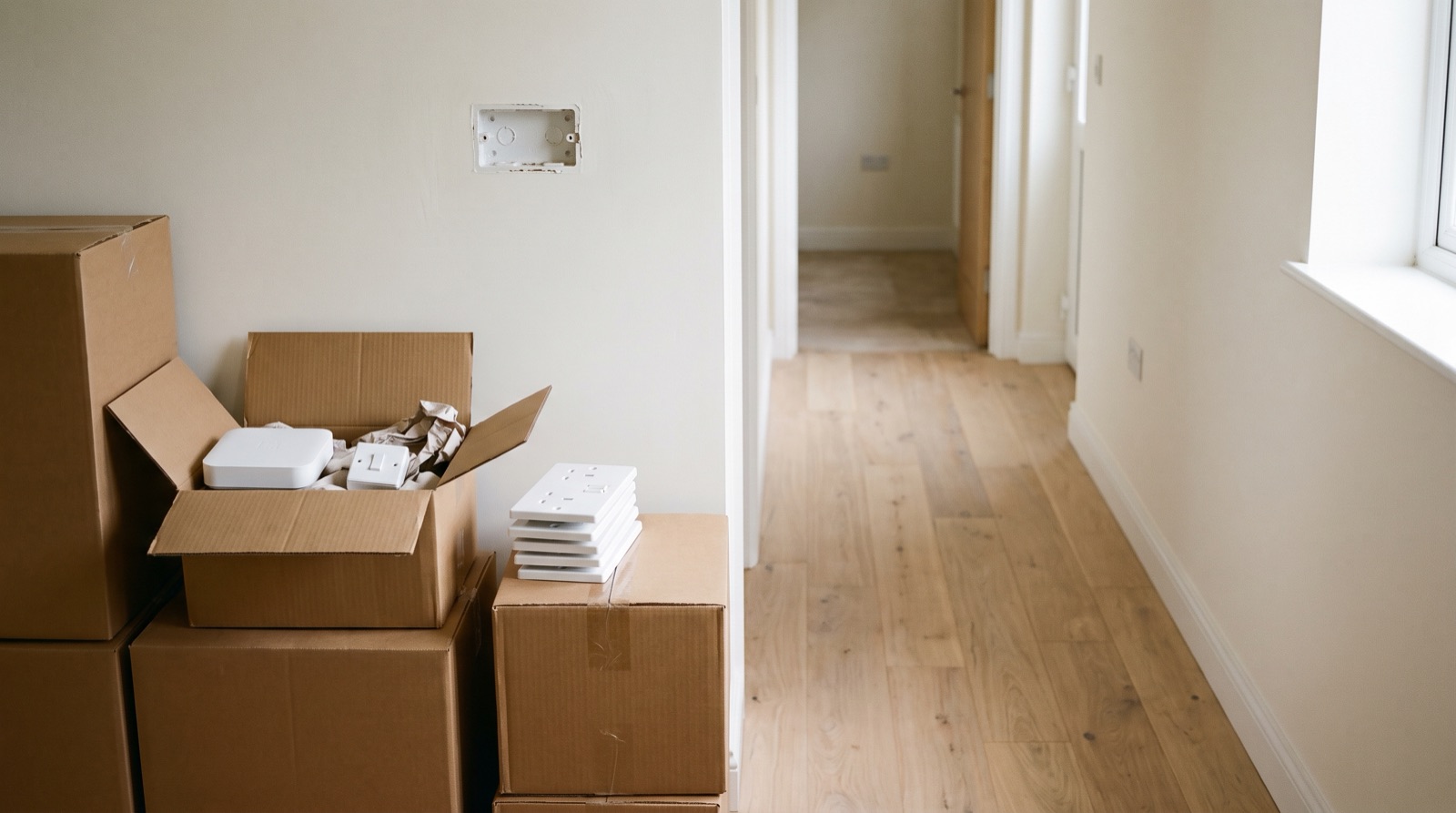
Answer up front — Move in this order: take an inventory and photograph every device, remove each device from the app as you take it down, remove the hub from your account and power it down last, then set the hub up fresh at the new house and re-pair. If you are selling, leasing out or handing the unit back, factory-reset every device and unpair the hub first, so the next owner does not inherit your notifications and your door code history. What survives a move is the hardware. What has to be redone is everything you configured.
Most move-day chaos is self-inflicted. The work that prevents it takes an hour and a phone.
Do not skip step 4. It is the single most common regret people report after a move.
This is the part people get wrong, and getting it wrong causes one of two problems: either you lose the pairing and have to re-pair everything, or — the worse one — your old home keeps reporting to you from a house you no longer live in.
At the old house:
At the new house:
| Item | Comes with you? | What you have to do |
|---|---|---|
| Hub | Yes | Unpair from the old account, set up fresh at the new place, everything re-pairs |
| Battery sensors (motion, door, window, leak) | Yes | Re-pair. Battery should be fine; check the level anyway |
| Smart switches and 20A modules | Yes, if they are yours | These are fitted in the wall. They are a job for a Suruhanjaya Tenaga-registered wireman, not a moving day |
| Smart bulbs, LED strips, ceiling lights | Yes | Just re-pair and put back |
| Curtain drivers and motors | Yes | A battery Curtain Driver E1 just re-pairs, if it suits the new track or rod. A mains track motor is fixed electrical work at both ends |
| Smart lock | You decide | If the new house already has a different door, the lock may not fit. Check the door thickness and the backset before you commit |
| Video doorbell and cameras | Yes | Re-pair and re-aim. Re-check your privacy position in the new place |
| Smart plugs | Yes | Nothing, they are plug and go |
| Automations, scenes, schedules | No | They are in the account, not the device. Rebuild them from your notes |
| The hub's position and mesh routes | No | The new house is a different building. Re-plan it |
| Wall switches and back boxes | No | Left behind, with the walls |
Read that table once more: the hardware moves, the configuration does not. People assume their whole system will come back with the boxes in the van. It will not, and the rebuild is the boring part that takes a weekend.
This is the part with a real consequence, so it is worth being blunt about it.
If the next owner inherits your hub, they inherit your account, your automations, and your notifications. They get a house that is texting somebody else. Depending on the devices involved, that can also mean a door they cannot open, a lock code that is still yours, and a camera still pointed at a street you have moved away from.
Before you hand over the keys:
If you are renting rather than owning, the problem often arrives from the other direction — you are the incoming tenant who has to deal with whatever the last tenant left. The steps are identical: remove, reset, re-pair. And if you are adding your own devices, the deposit angle below applies to you.
If you are in a rented unit, this is the part to be careful with, and it is worth putting in writing at the start rather than arguing at the end.
The rule of thumb: if it went on with adhesive or into a socket, it comes off cleanly. If it needed a drill, ask first. If it needed a wireman, you need permission in writing.
If you are renting and you want a smart home, the order is the same and the scope is smaller.
What usually works in a rental:
What usually does not work in a rental: anything hard-wired, anything drilled into a common wall, anything on the main door or the car park gate, and anything that a new tenant will inherit if you do not reset it.
The upside of renting is that you can move everything without touching a wall. The downside is that nothing that requires a wireman is available to you.
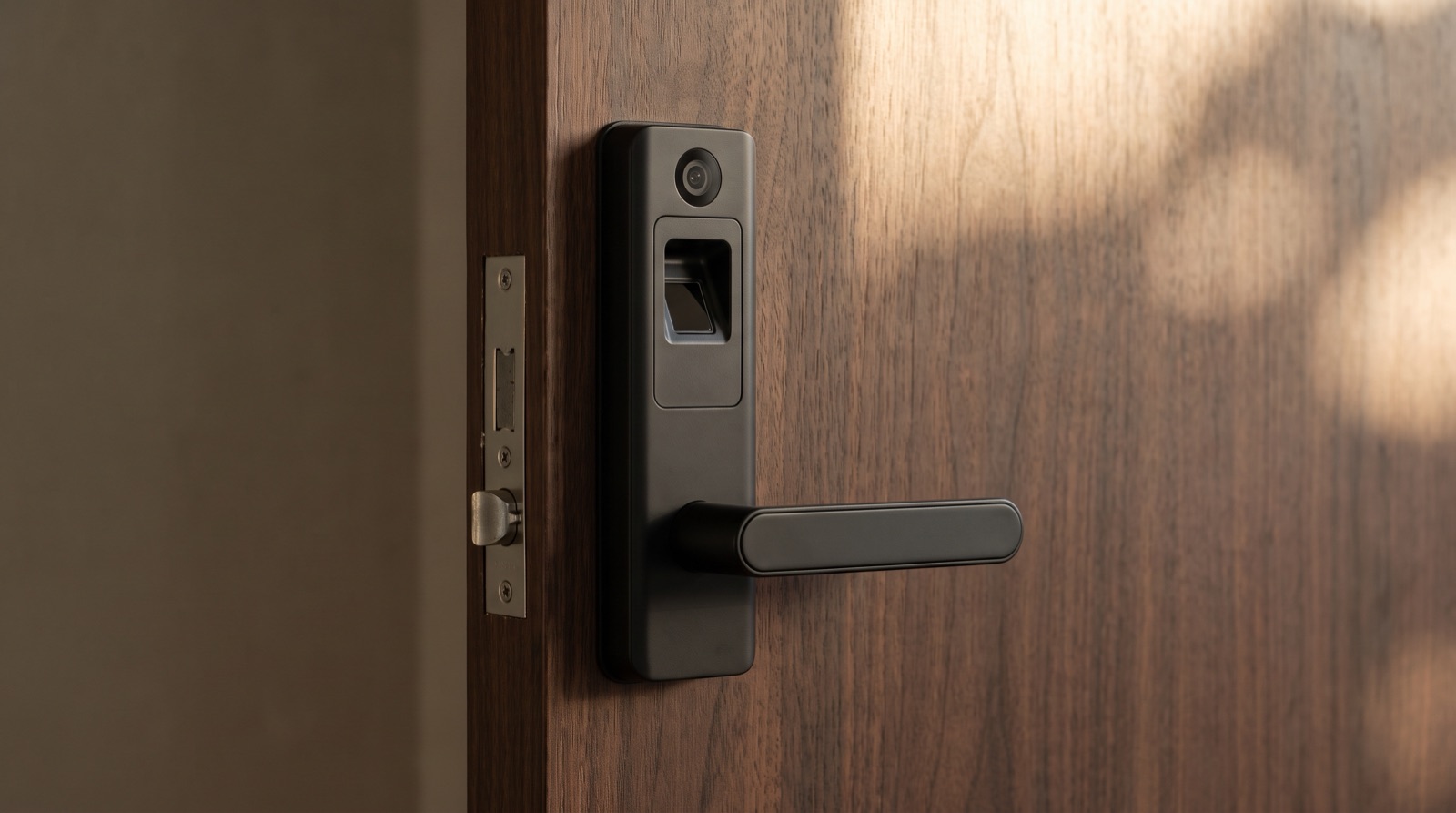
Smart lock Malaysia buying guide covering the Aqara D200i, U400 and U200 Lite, plus door thickness, battery failure and what your condo management allows.
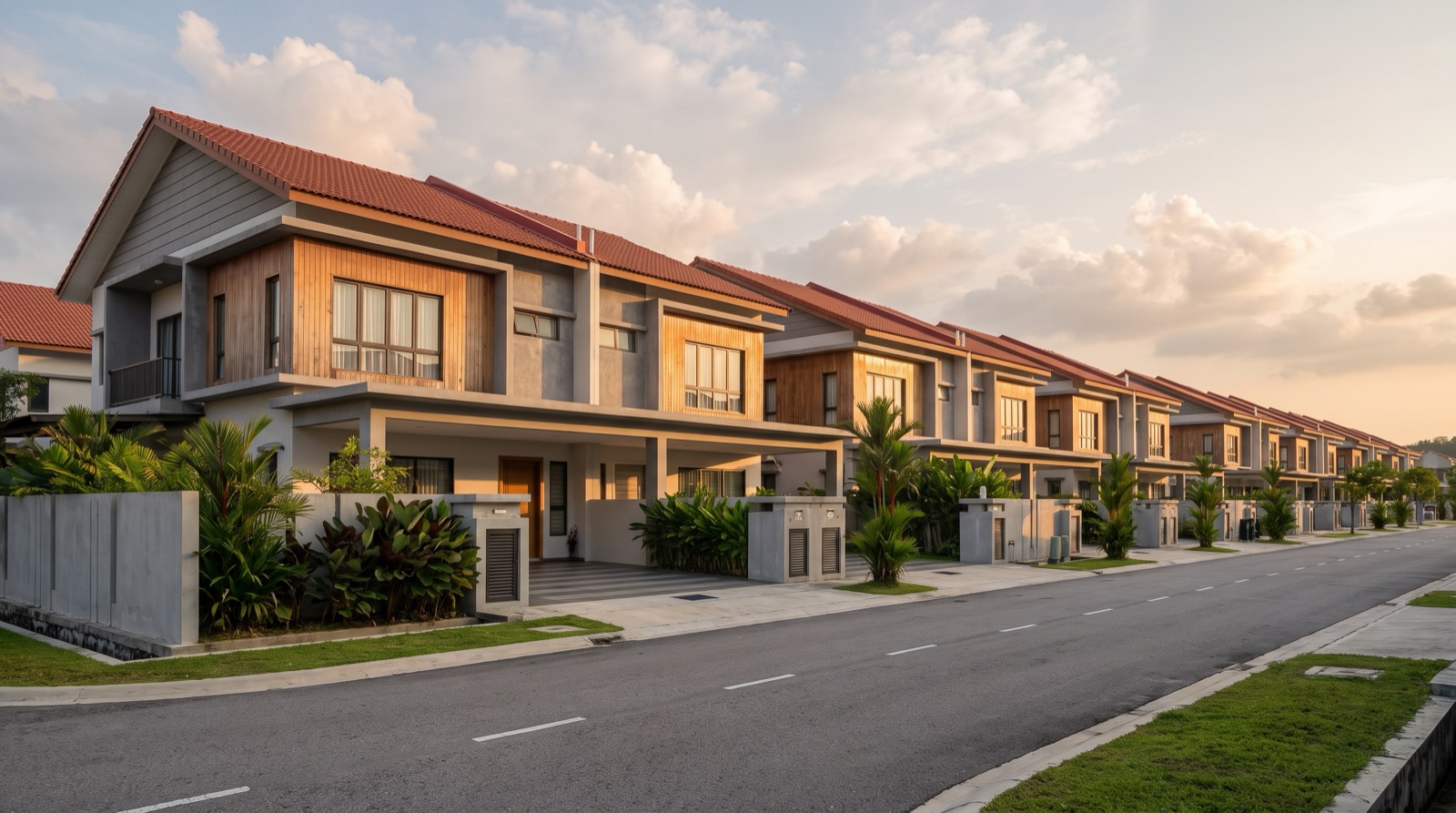
Smart home retrofit Malaysia house type: what is easy, what is painful, and what it costs to start - terrace, shop lot, walk-up and new high-rise unit.
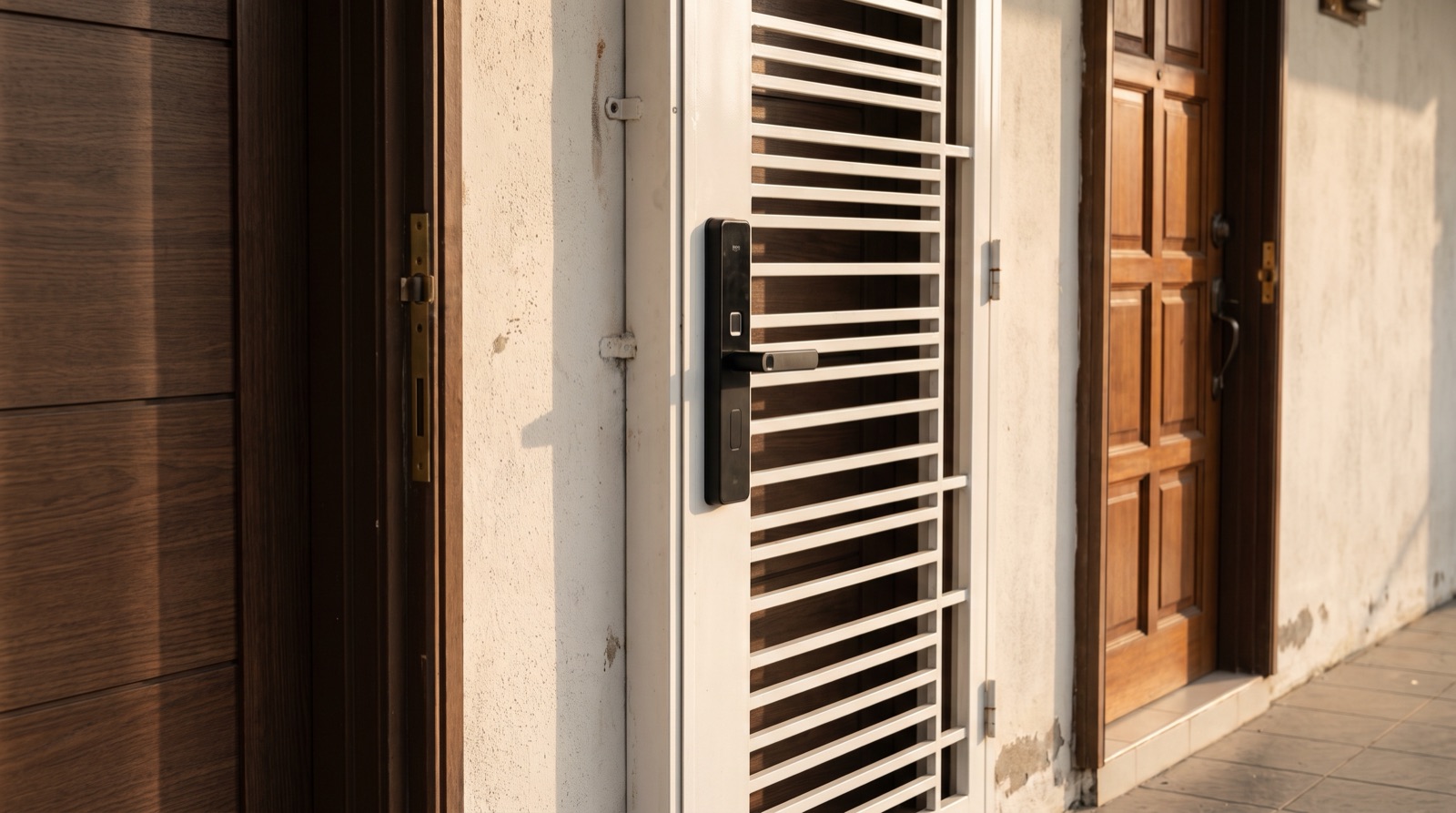
Smart lock installation across Malaysian door types: solid wood, metal security door and panelled door, frame clearance, mortise vs retrofit, and handover.
Tell us about your space. Our B2B team will reply within one business day with a recommended setup and quotation.
WhatsApp us →
[email protected]
+603-5880 5486