






Zigbee vs Wi-Fi vs Matter smart home in Malaysia: choosing a hub
Zigbee vs Wi-Fi vs Matter smart home in Malaysia compared. Learn why local control matters, what a hub does, and what actually happens when the Wi-Fi drops.
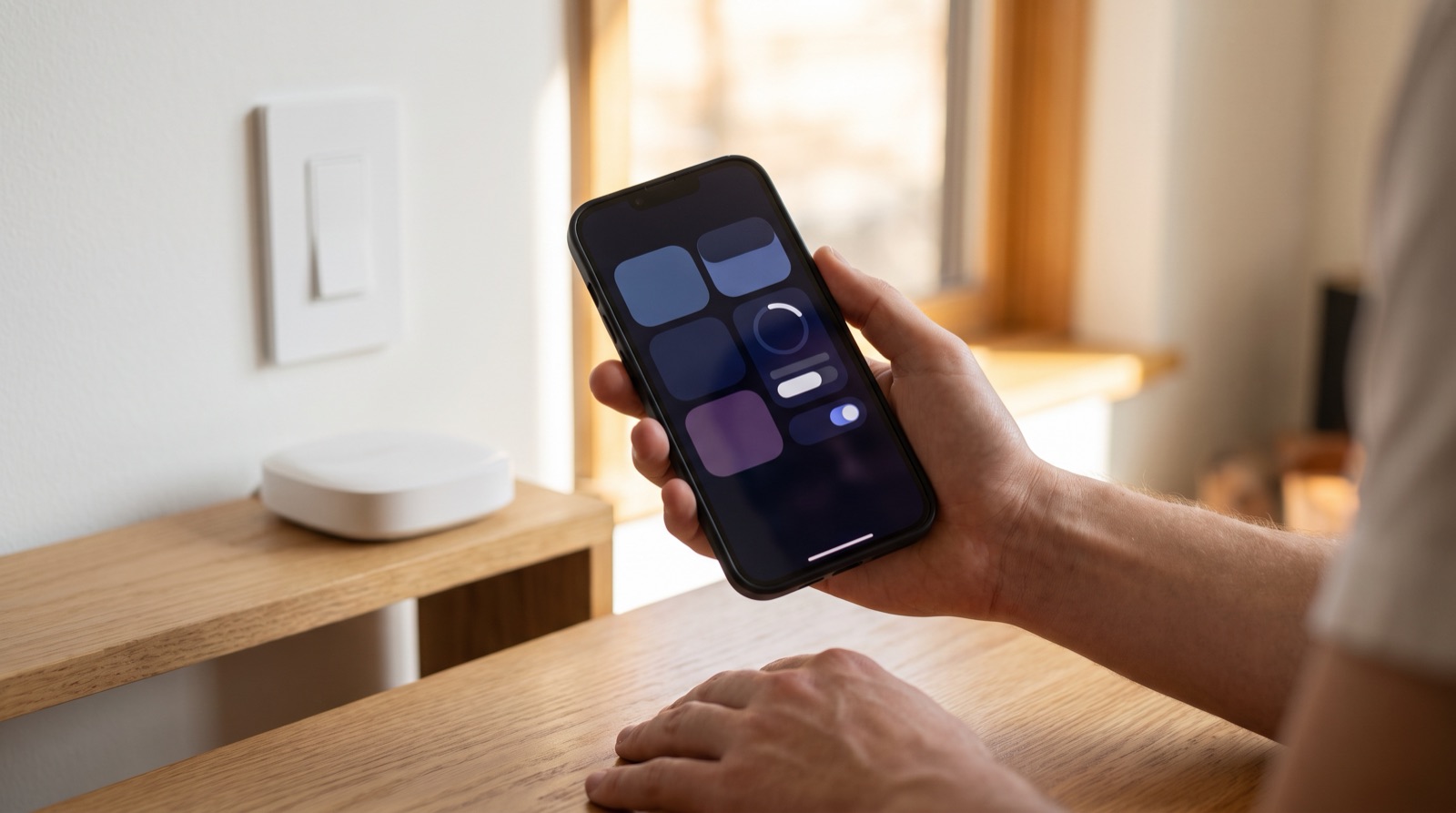
Answer up front — The Aqara Home app is where your devices actually live: you pair them, name them, group them into rooms, write the automations and hand access to other people. The voice assistants sit on top of that and control the same devices by voice. Set the hub up and connected to the same network first — most pairing failures are a hub that is not yet on your Wi-Fi, not a faulty sensor. Exact menu labels move between app versions, so look for the option by function, not by the exact wording on this page.
This is worth separating early, because people buy a smart home expecting to talk to it and then find out the app is the part they use every day.
| Job | Where you do it | Why |
|---|---|---|
| Adding a device | Aqara Home app | Pairing needs the hub, the network and a phone in your hand |
| Naming rooms and devices | Aqara Home app | Automations read these names; you set them once |
| Writing an automation or a scene | Aqara Home app | A rule is built from a trigger, a condition and an action |
| Granting access to a family member | Aqara Home app | Sharing is an account-level permission |
| Turning a light on by voice | Siri, Alexa or Google Assistant | Voice is a control surface added on top of the app |
| Checking whether a device is online | Aqara Home app | It is the one place that shows the real state of the home |
The practical consequence: set up in the app, then add voice. If you try to add a device through a voice assistant first, you are doing the hard part in the wrong place. How the three assistants sit on top of the app is in Apple HomeKit, Google Home and Alexa with Aqara, and the hub decision underneath all of it is in Zigbee, Wi-Fi or Matter: choosing a hub.
Aqara is Zigbee-first. A Zigbee sensor does not connect to your phone or your router — it joins the mesh through a hub. So the order is fixed:
If you skip step 1 and try to add a sensor first, the app will usually be searching for a hub that is not there. That is the single most common pairing complaint, and it has nothing to do with the sensor.
A note on honest limits: the app will tell you a great deal, but it cannot tell you what is behind a switch plate. If a device needs wiring and you have not had the boxes opened, no amount of app troubleshooting will help. The wiring question is in Does your house have a neutral wire?.
Do it on day one, before you write a single automation.
The payoff is that when you build an automation later, the app shows you a list of readable names instead of a wall of device codes. A household that names things properly takes fifteen minutes and never argues about which sensor triggered what.
This is the feature most people find late, and the one that most changes how a house is used day to day. Without sharing, everyone reaches for your phone.
In the sharing settings for your home, you can invite someone — typically by their account or email address — and give them a level of access. The two levels that matter:
| Access level | What it is for | Practical effect |
|---|---|---|
| Full member | The people who live there | Can control the home, add devices and change settings |
| Limited or guest access | A partner, a family member who is visiting, someone helping you | Can control what you allow, without full control of the home |
Exact wording and the way the invite is labelled differ between app versions and between regions, so look for the sharing, member or guest option in your home's settings rather than a fixed menu path.
This is the option that changes the safety conversation, and it is worth finding deliberately. Where the app offers it, you can limit what a shared member can see and control to a single room or a single device, rather than the whole home.
That matters more than it sounds. It means the person who helps with the laundry does not need to be able to unlock your front door, and the child who is allowed to turn on the corridor light at bedtime does not need the ability to arm the whole house. If your app version does not offer per-room limits, say so to yourself honestly and choose accordingly — do not assume the restriction exists because you assume it should.
You move a sensor, the app says it is offline, and now you cannot find the pairing control. Common, and usually fixable.
If a device is genuinely unresponsive after a reset, that is a warranty conversation, not an app conversation — and it is one we handle locally as the official Aqara distributor in Malaysia.
Honesty, so you do not lose an afternoon:
For anything in that list, you need a person on site, not a screen.
If your unit came with smart devices already installed by a developer, a building operator or a contractor, the account situation may not be the normal one — those devices can sit under an account that is not visible to you, or under a platform arrangement. That is worth sorting out before you start buying anything for a house that already has gear in it. The technical version of that problem is covered in AqaraLink onboarding, virtual accounts and app keys, and the lock question for a shared door is in Do you actually need a smart lock?.
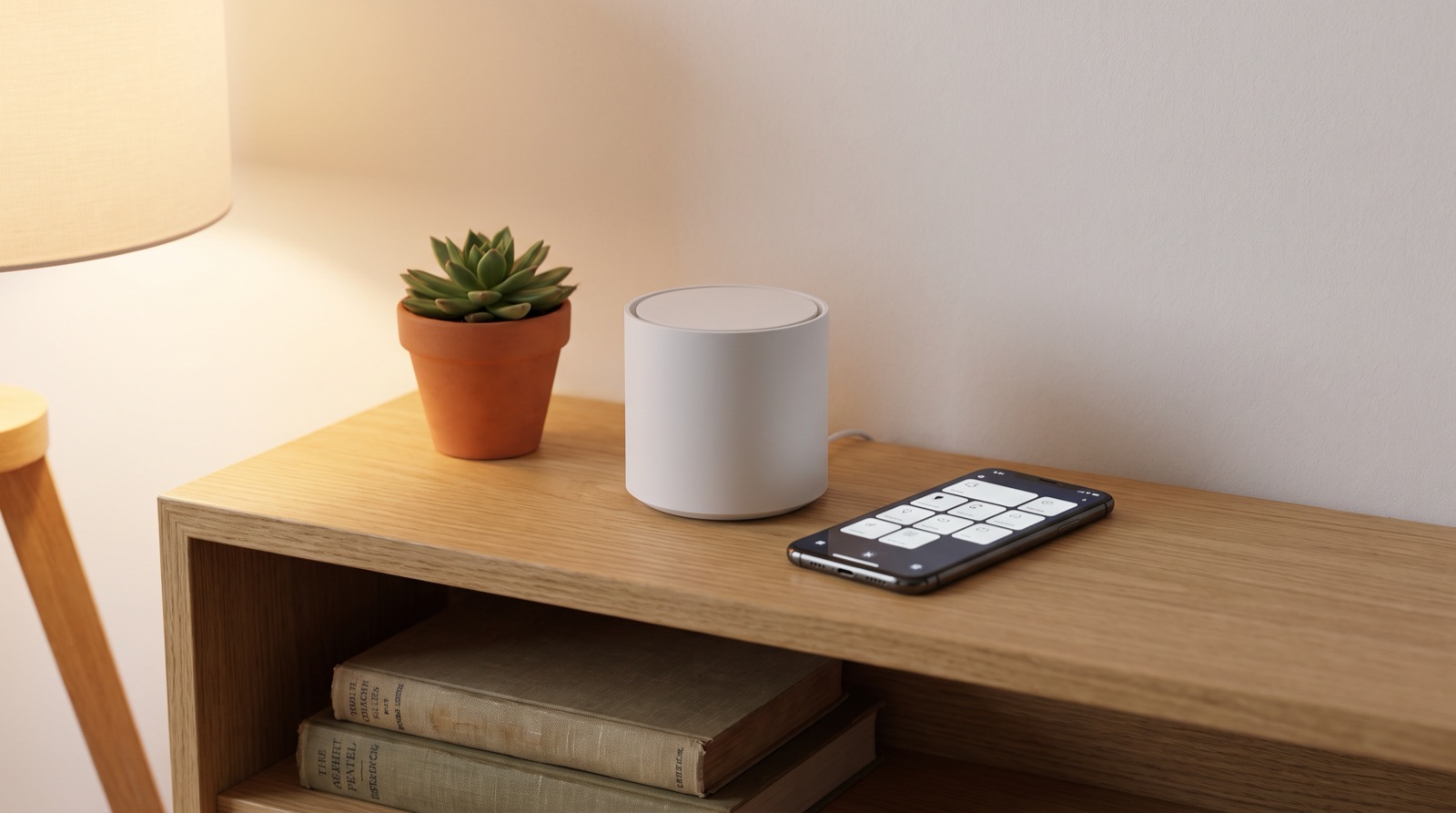
Zigbee vs Wi-Fi vs Matter smart home in Malaysia compared. Learn why local control matters, what a hub does, and what actually happens when the Wi-Fi drops.
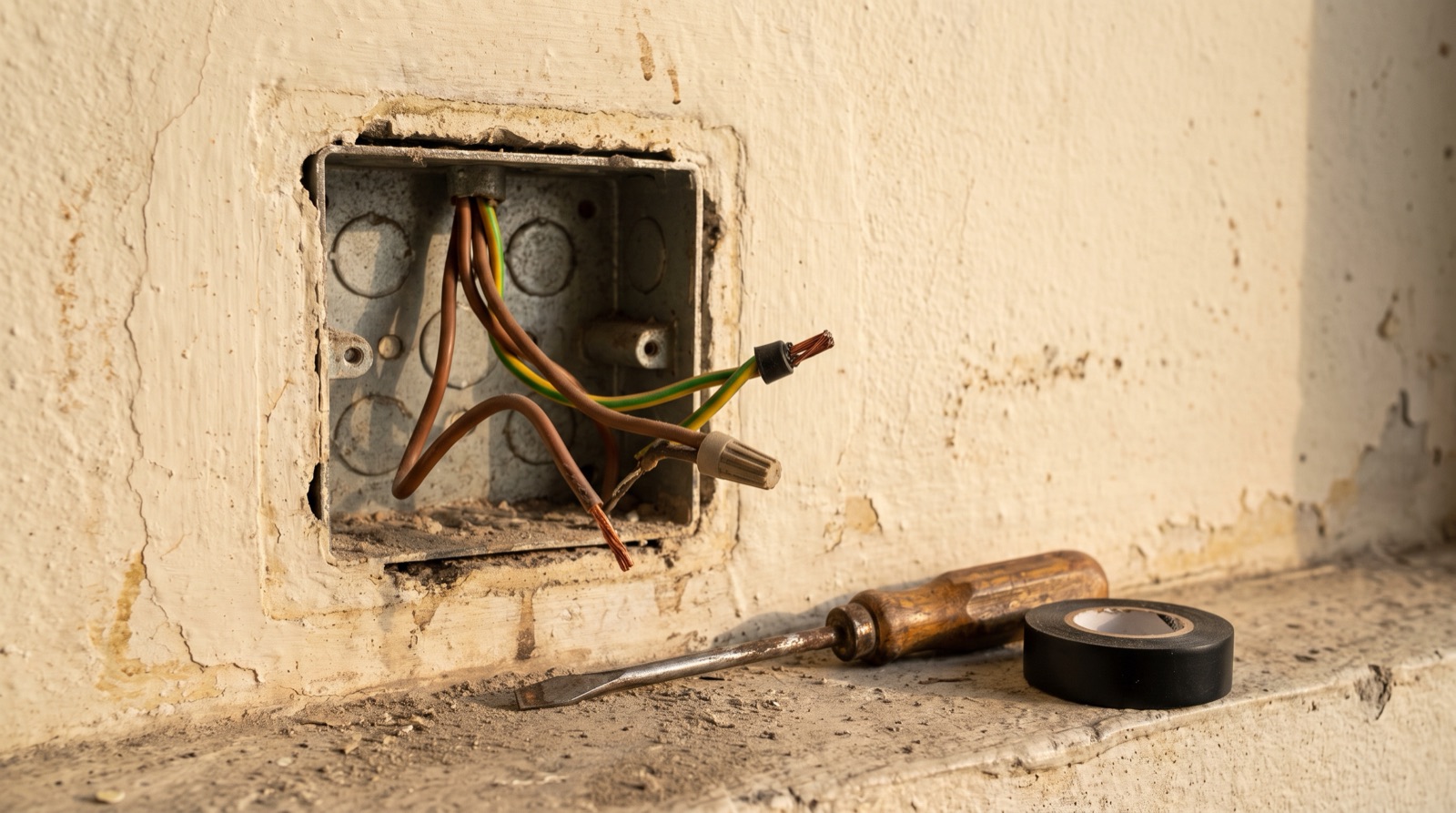
A neutral wire smart switch Malaysia guide: how to check whether your box has a neutral, why loop-in wiring leaves it empty, and what to do next about it.
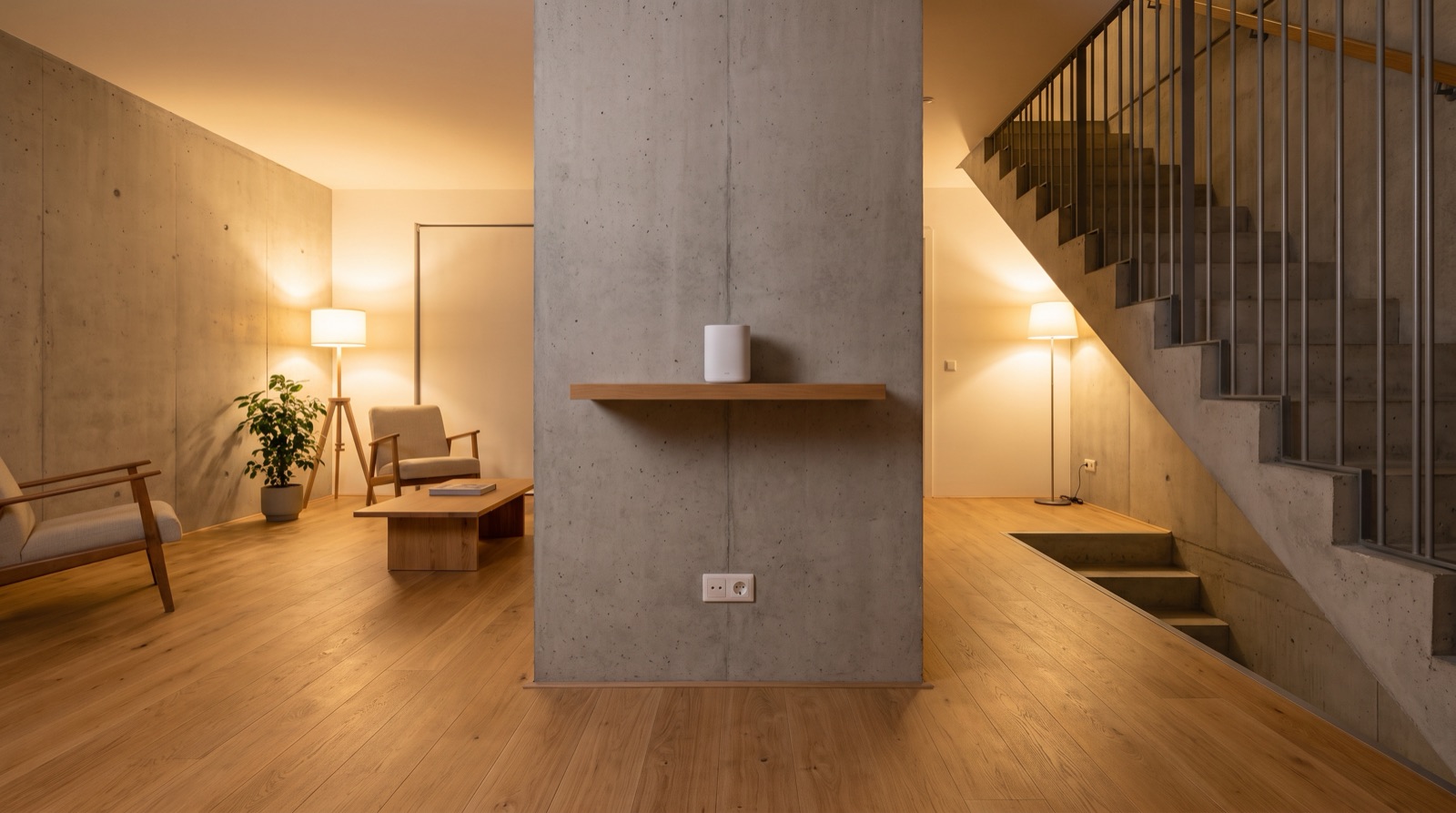
Smart home hub placement and Wi-Fi coverage in Malaysia: where the hub goes, telling a Wi-Fi fault from a Zigbee fault, and why power backup is part of the plan.
Tell us about your space. Our B2B team will reply within one business day with a recommended setup and quotation.
WhatsApp us →
[email protected]
+603-5880 5486